Disclaimer: This Tutorial will only work for emails sent to other @ubishops.ca email, the recall function will not work with emails sent to gmail accounts, other outlook accounts, etc.
Emails cannot be recalled if the receiver has already read the email.
Emails sent from a shared mailbox cannot be recalled.
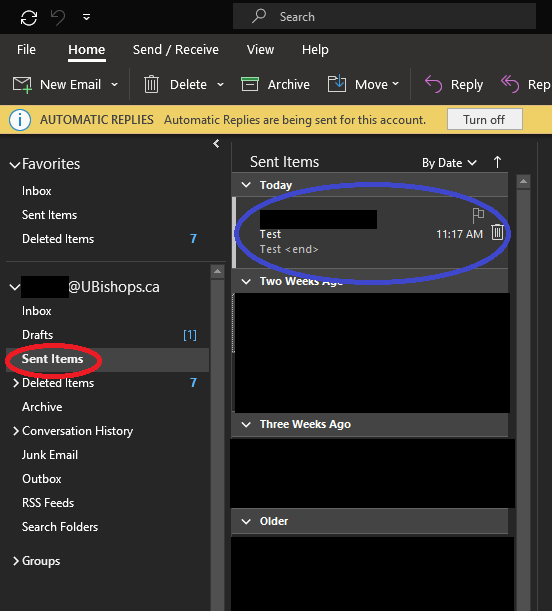
1. Go into your sent items in your Outlook app and double click on the email you want to recall. A new window with the email should pop-up.
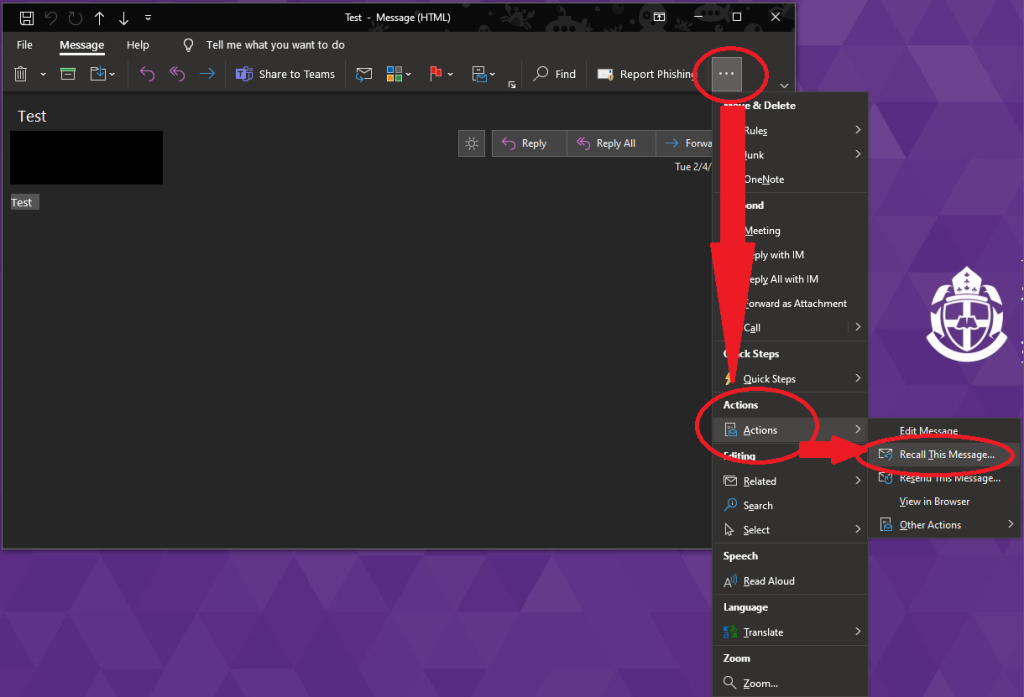
2. In the pop-up window, click on the 3 dots then click on “Action” and finally click on “Recall this message”.
3. You should receive an confirmation report to confirm the deletion of the email.
How to recall emails in new Outlook
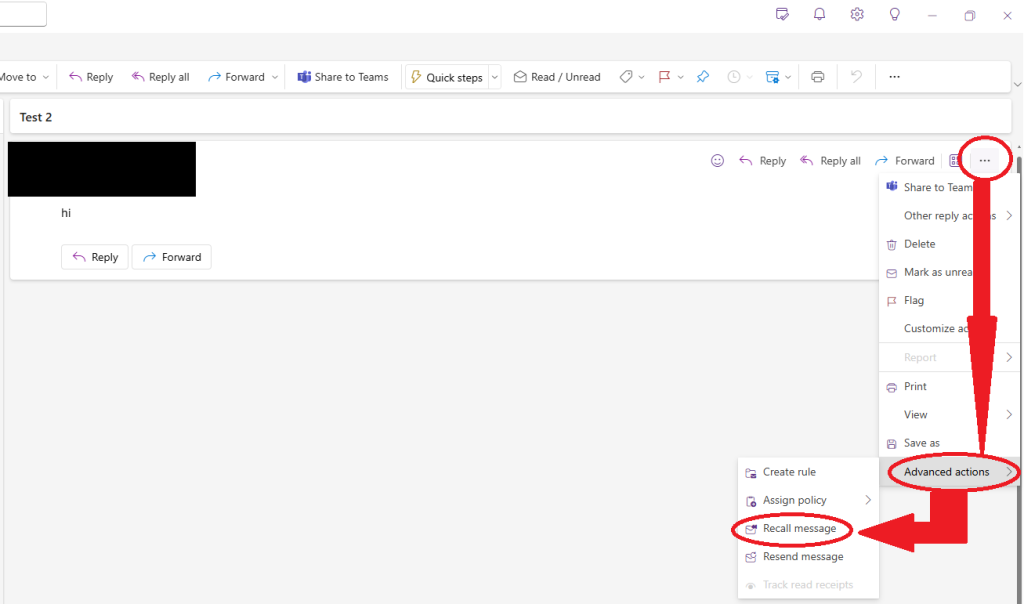
Go into your sent items in your New Outlook app and double click on the email you want to recall. The email should appear on the right of the sent items list.
On that email, click on the 3 dots then click on “Action” and finally click on “Recall this message”.
You should receive an confirmation report to confirm the deletion of the email.