Still printing in black & white even when colour is selected
Are your colour prints to one of the large Xerox photocopiers coming out as black and white even though you have colour selected? Follow these steps to disable the setting which may be causing your issue.
Step #1:
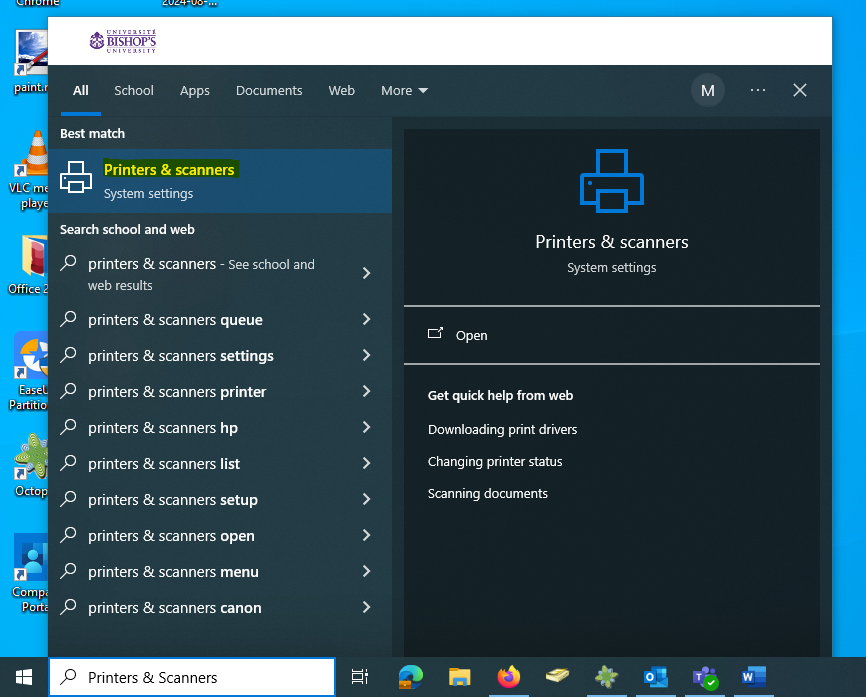
In the Windows search bar, type in “Printers & Scanners” and choose the first option.
Step #2:
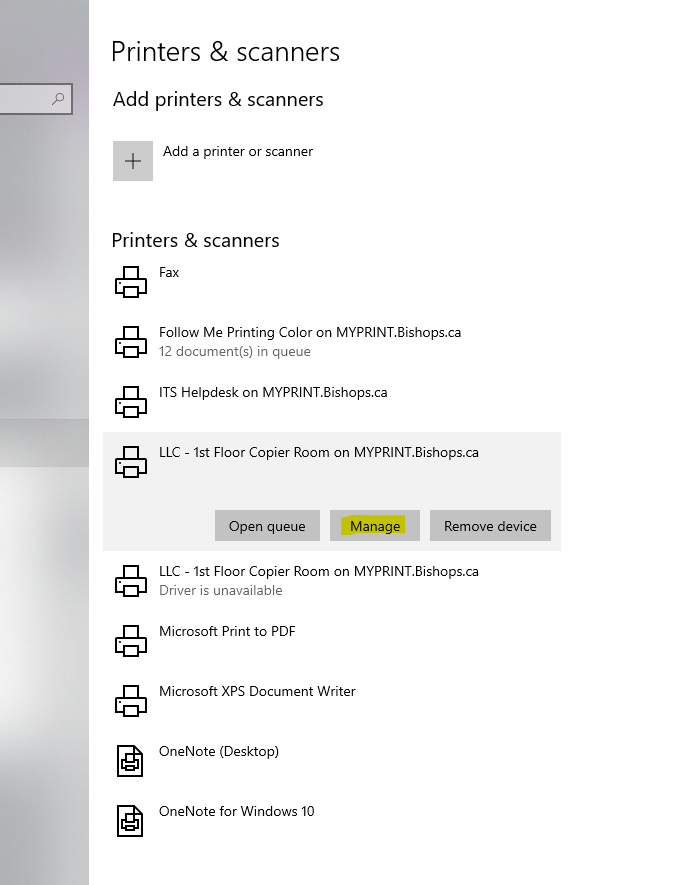
Select the printer which you would like to print on and click “Manage”. If you do not know which printer to use, follow the instructions at this page to install the Follow Me printers on your device, and select “Follow Me Printing Color”.
Step #3:
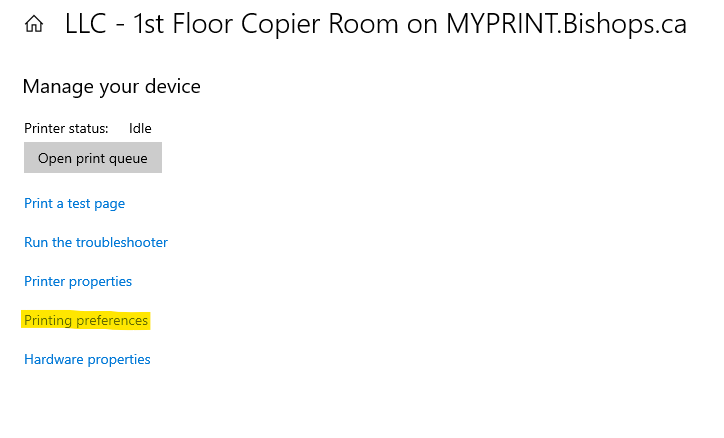
Click on “Printing preferences” to bring up the Xerox configuration window.
Step #4:
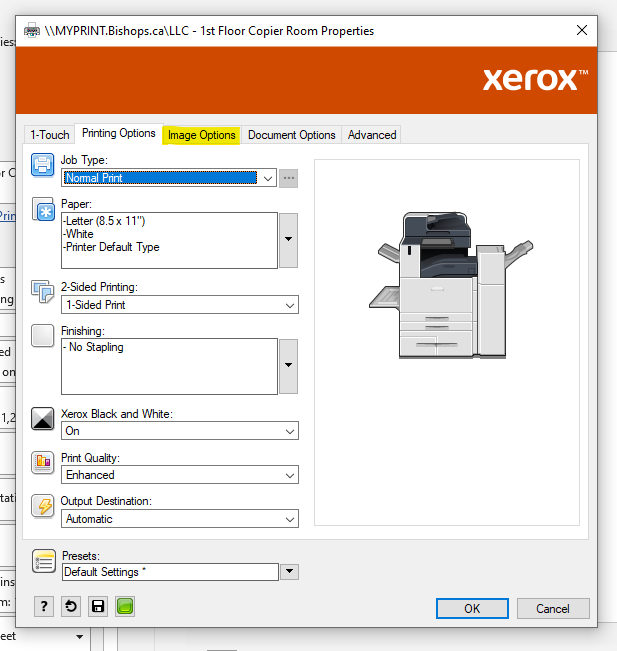
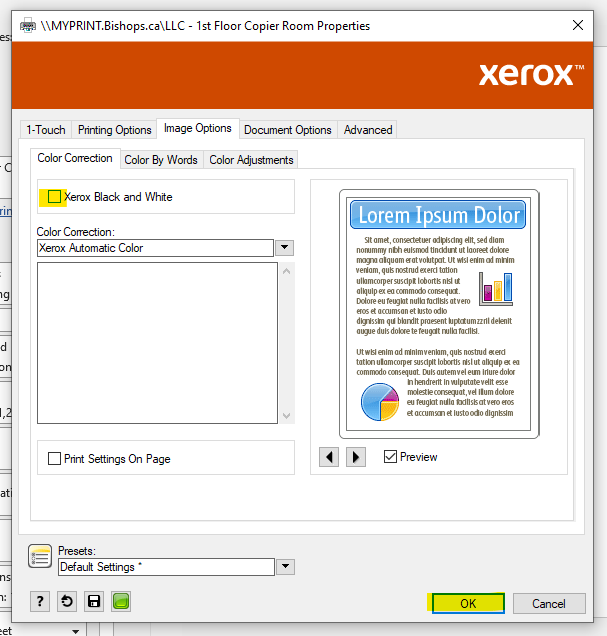
Click on “Image Options”.
Step #5:
Under the “Color Correction” section, uncheck the “Xerox Black and White” option. Press “OK” to save your changes and close the Xerox configuration window.
My colour document is still not printing:
If your colour document did not print and you got the email shown on the right, this means that you do not have access to colour printing. Your manager or your dean will need to place the following ticket on Octopus to grant you access: I have a request for → Security/Access Requests →Access to Colour Printing.
PRINTING DENIED
You do not have permission to print in color on photocopier name.